
Help/Letters/Sending your letters
Sending your letters
When new jobs are added, Tutaris prepares a letter for each resident, starting with an introduction letter. Letters are not sent automatically: you print and post them, then record that you have.
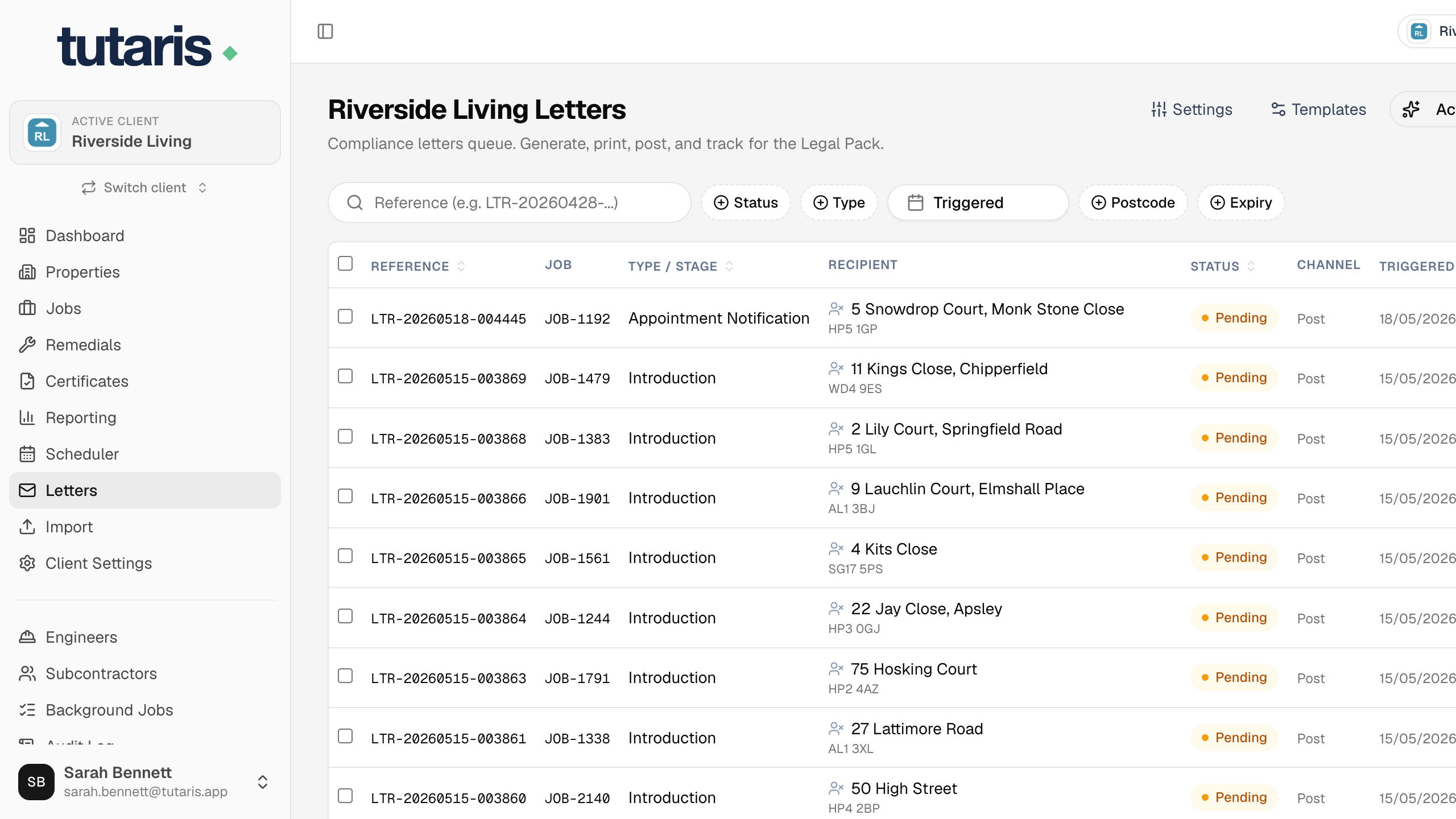
- 1In the menu, click Letters. This is your queue of every letter waiting to go out.
- 2Click Activate Pending Jobs at the top right, then confirm. Tutaris creates the introduction letters for any jobs just added.
- 3Tick the box next to each letter you want to send. To select the whole page, tick the box at the very top.
- 4Click Download Batch PDF, open it, and print the pages.
- 5Once printed, click Mark Printed. Those letters now show Printed.
- 6Put them in the post, then select the same letters again and click Mark Posted.
- 7Choose the Delivery method, type the Reference number from your receipt, optionally add a Photo of receipt, and click Confirm Posted.
The letters now show Posted, with the date and proof recorded for the audit trail.
Over time Tutaris adds reminder and contact-request letters on its own. Send them the same way.
After you book or move an appointment, its letter takes about 10 minutes to appear in the queue. That short delay is deliberate, so a run of quick changes does not fire off a letter each time.
Still stuck? Email us and we will help.