
Help/Importing data/Importing properties and jobs
Importing properties and jobs
Instead of typing properties in one by one, you can add lots at once from a spreadsheet. Tutaris takes a CSV file in a set format.
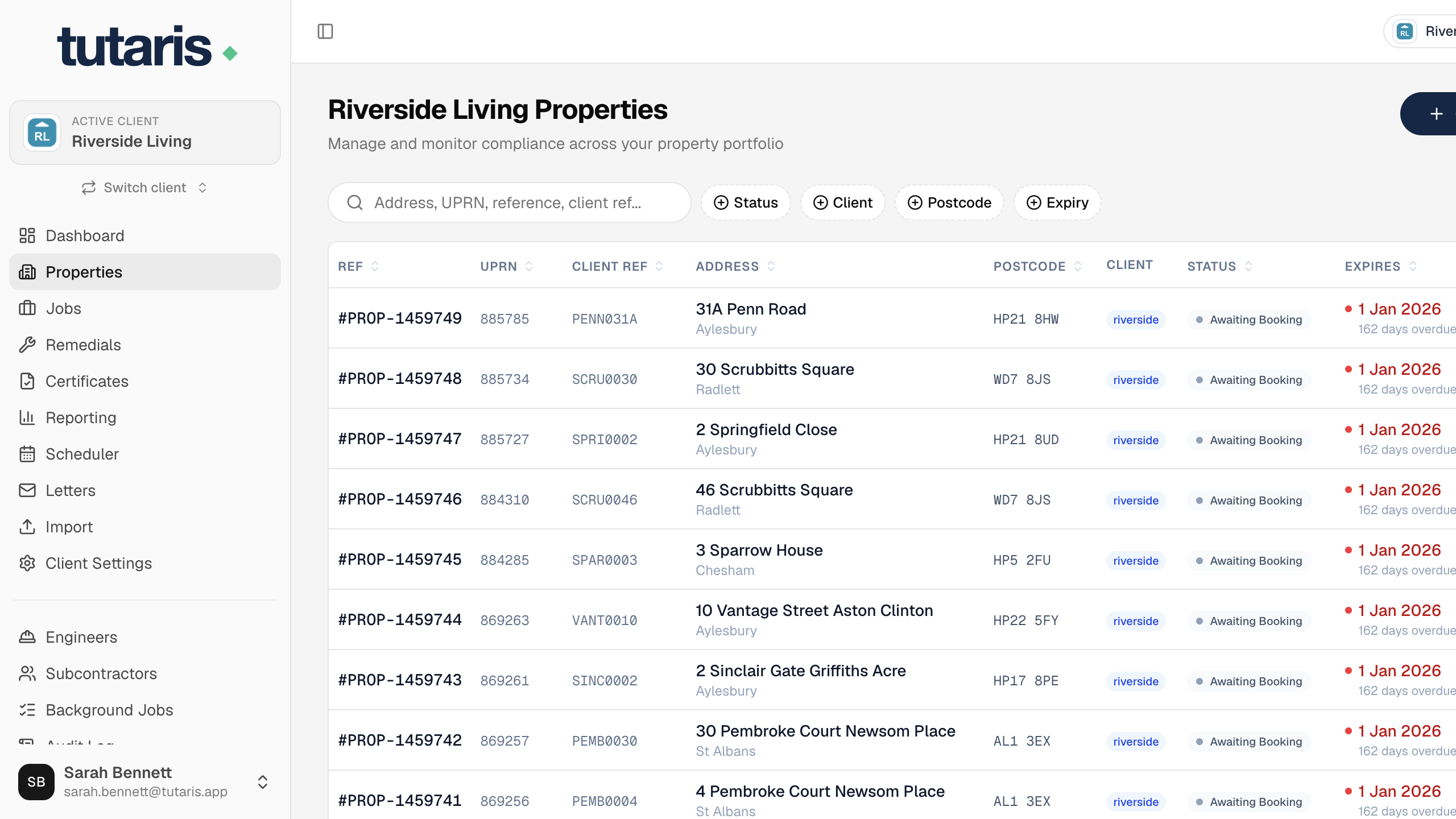
Your data needs to be a CSV file with a fixed set of columns. Start from the blank template below. The example shows how it looks filled in, including a normal job, a job with resident details, and a job with a visit already booked.
- 1Open the client you want to import into, then in the menu click Import.
- 2Choose Combined Import, the recommended option. It loads properties and jobs together.
- 3Fill in the template (each row is a property, and becomes a job too if you give it a job type), and save it as a CSV. If your data is in Excel, save as CSV first.
- 4Upload it. Tutaris checks every row and shows a preview, with any problems flagged before anything is saved.
- 5If the preview looks right, confirm. The import runs in the background and tells you when it is done.
The main columns are the address and UPRN, the job type (such as EICR or Gas Safety), and optionally the resident's name, phone and email, and an appointment date if the visit is already booked.
Dates must be written as YYYY-MM-DD (for example 2026-04-08), or the row will be rejected.
Still stuck? Email us and we will help.